Importing Documents
Importing documents into FileEazy! is a two-step process. You must create the Document Types in FileEazy! before you do any operation. Only one Document Type can be imported together. Please note that after both steps are completed, documents must be Published before they can be available in your system. Unpublished documents will remain in the Import list until they are published and they will not appear in any search.
In Step 1 you will just add the documents to a temporary table and in Step 2, you will furnish those documents with all the required information (Index fields).
Step 1
In the first step you will import the documents by either dragging the same group of documents or choosing them from a folder in your computer.
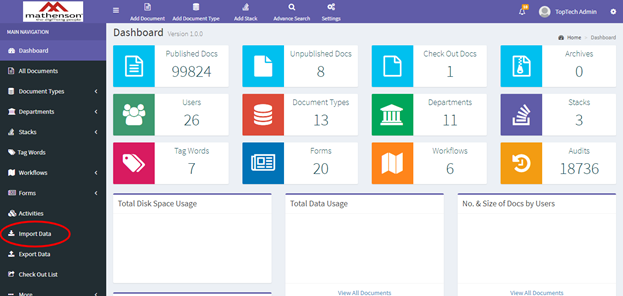
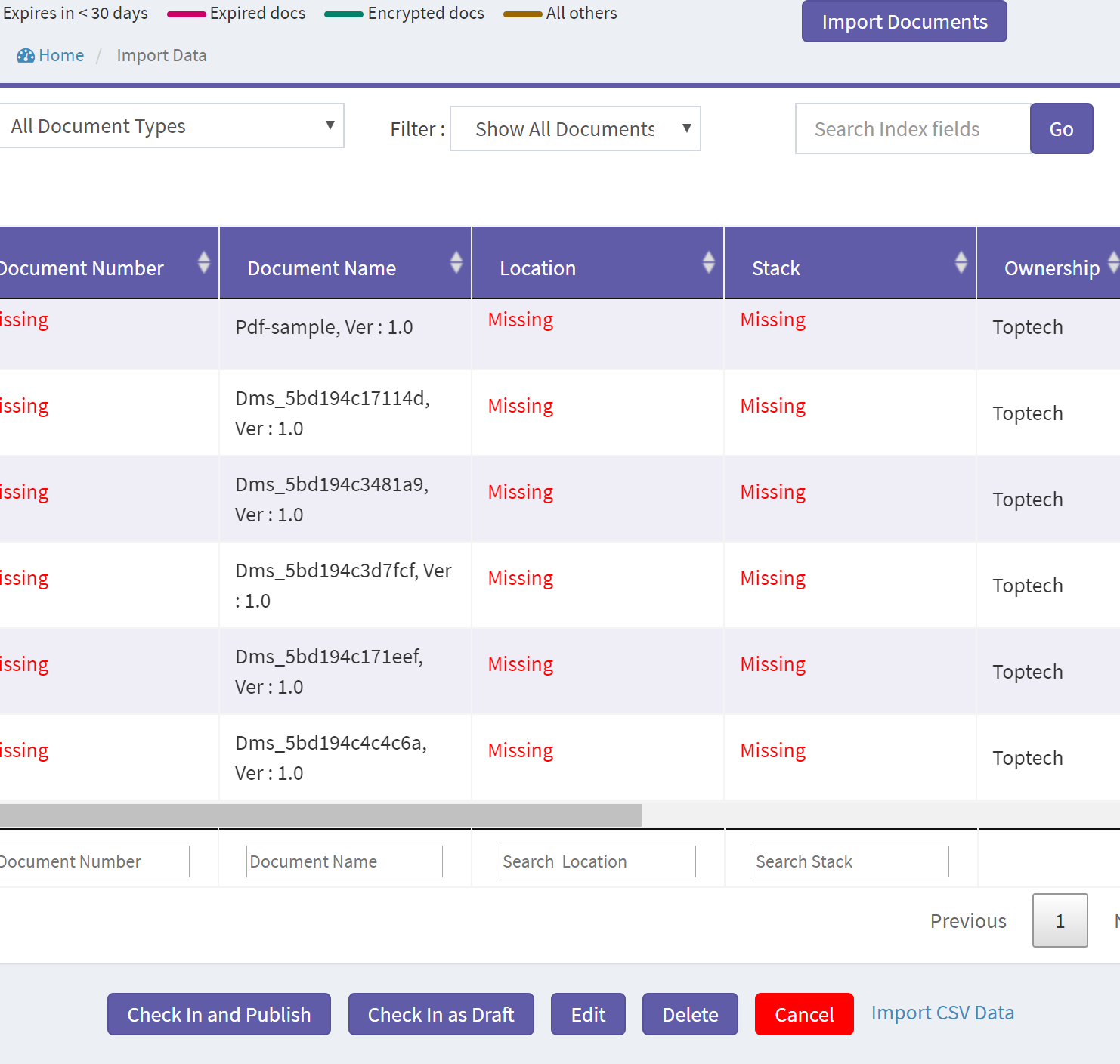
Click on the Import Data menu on the left hand side. See the screen shot below.
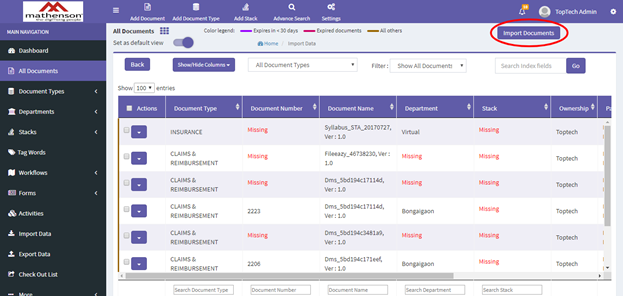
This will take you to a List View screen of Import data. If there are any unpublished documents this screen will list them. Click on the Import Documents button.
This will take you to a screen where where you drag and drop the documents that you are planning to import. After the files are dropped in the drop zone, select the Document Type. Note that only one Document Type can be imported at a type. Select or input all the other columns if you have those information handy. You can do this exercise later too, using a csv file.
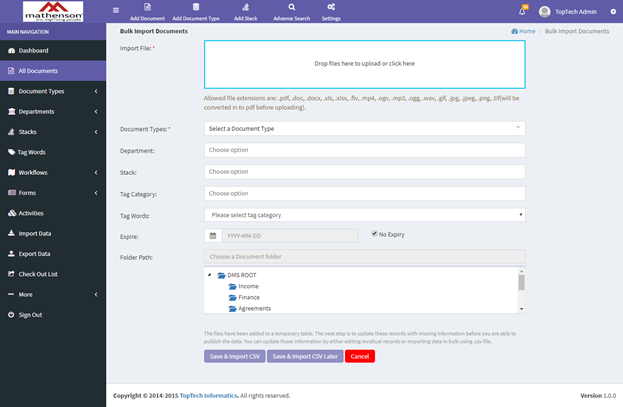
Click either Save & Import CSV (this will save the data and redirect to the CSV import page as described in Step 2 below) or Save & Import CSV Later (this will save the data and redirect to the import list page).
Step 2
Once you completed the tasks in Step 1 the documents will be added to a temporary table waiting to be updated with all the missing data. These documents will not appear in the main document list or in your search results until they are published.
If you had clicked Save & Import CSV button in Step 1, it will take you to the following screen.
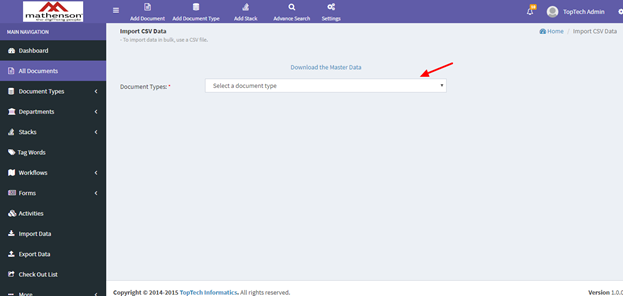
If you had selected Save & Import CSV Later in Step 1 you can import the csv file later by clicking on the Import CSV Data link at the bottom right corner of the screen.
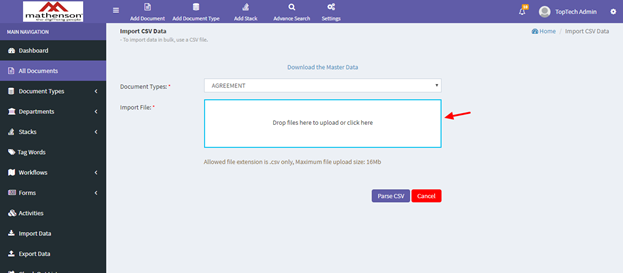
Select the Document Type for which you are going to update the index fields, drop the csv file in the drop zone and click Parse CSV button.
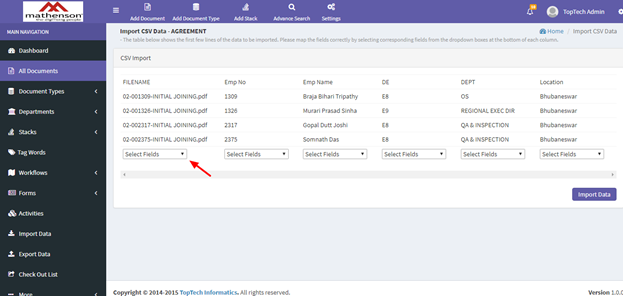
In this screen you can map your .csv data with the index fields of the Document Type that you plan to import. If the column header in the .csv file matches the column name of the Document Type, you can see that they are mapped automatically.
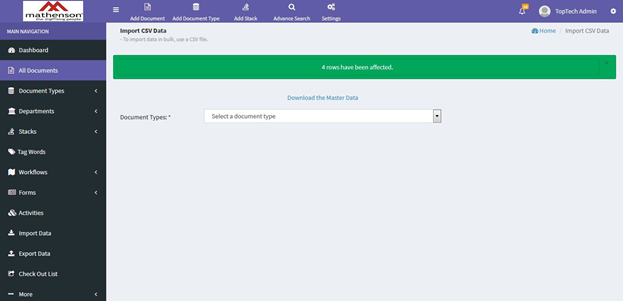
After mapping the index fields, click Import Data. A success screen will look like the following.
Related Topics